Getting online used to mean signing a contract, waiting for an installer, and hoping the router in the corner reached the bedroom. That model still works for some households, but it fits poorly with how many people actually live now. Travelers hop between cities, students move every semester, and remote workers need a connection that follows them from the kitchen table to a campsite. A portable hotspot answers that shift by turning cellular data into a private Wi-Fi network you can carry in a pocket or bag. You pay for the data you plan to use, skip the long-term commitment, and switch it on wherever there is coverage.
Still, going prepaid raises fair questions. Is the connection reliable enough for video calls? How much data is enough? What happens when the signal drops? This guide walks through how these devices work, who benefits most, how to set one up, and how to keep your connection steady without overspending on data you never touch.
How a Prepaid Hotspot Actually Works
At its core, a hotspot is a small router with a cellular modem inside. It picks up a mobile data signal from a nearby tower and rebroadcasts it as Wi-Fi, letting laptops, tablets, phones, and streaming sticks share a single connection. The prepaid part refers to how you pay. Instead of a monthly contract with credit checks and cancellation fees, you load a plan in advance, use it, and top up when you need more. A well-designed prepaid mobile hotspot keeps that process simple, so you spend less time managing accounts and more time actually online.
This setup offers a few practical advantages over a phone’s built-in tethering. The device has its own battery, so your phone stays charged for calls and navigation. It usually has a stronger antenna and can handle more connected devices at once. And because the data plan is separate, heavy laptop use does not eat into the allowance you rely on for your phone.
The trade-off is that you are carrying one more gadget, and performance depends on local coverage. A hotspot cannot create signal where none exists, and a crowded tower will feel slower at busy times. Understanding those limits upfront helps you decide whether prepaid fits the way you use the internet.
Who Gets the Most Out of Going Prepaid
Not everyone needs a portable connection, but a few groups find it hard to go without one once they try it.
Frequent Travelers and Road Trippers
Hotel Wi-Fi is famously inconsistent, and public networks in airports and cafés raise real security concerns. Travelers who carry their own hotspot get a private, password-protected network that looks the same in every city. Families on road trips can keep tablets running for kids in the back seat, while the driver’s phone stays free for maps. The key need here is simple: a connection you can trust without hunting for a login page every evening.
Renters, Students and Short-Term Households
If you are signing a six-month lease or living in campus housing, a fixed broadband contract often costs more in fees and hassle than it is worth. A prepaid device lets you get online the day you move in and take the same setup with you when you leave. There is no installer appointment, no equipment to return, and no penalty for ending service early.
Remote Workers Who Need a Backup Line
For people who work from home, an outage during a client call is more than an annoyance. Keeping a hotspot charged and ready gives you a fallback that switches on in seconds. Some remote workers also use it as their primary connection when working from a co-working space, a relative’s house, or a vacation rental with weak internet.
Setting Up Your Hotspot Step by Step
Most hotspots are designed to be usable within minutes, but a little preparation avoids the frustrating moments that make people give up on a new device.
- Check coverage maps for the places you spend the most time before choosing a plan.
- Insert the SIM card if it is not preinstalled, then fully charge the device before first use.
- Power it on and wait for the signal indicator to settle, which may take a minute or two the first time.
- Connect a laptop or phone using the network name and password printed on the device or its label.
- Log in to the admin page or companion app to change the default password and network name.
That last step is easy to skip, yet it is the one that matters most for security. Default credentials are sometimes printed where others can see them, so replacing them with something unique protects your data and your allowance. While you are in the settings, look for options such as data usage alerts and automatic sleep timers, which help later.
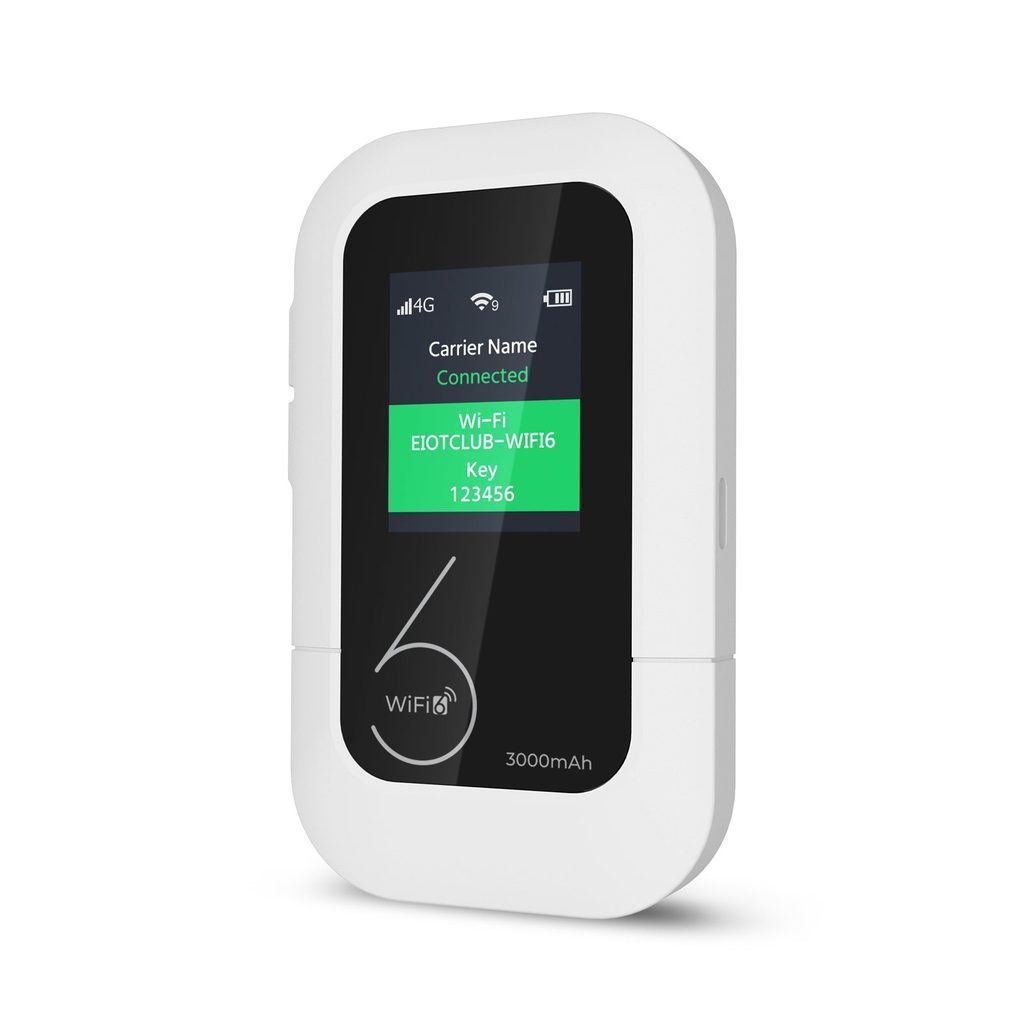
Placement also plays a larger role than many people expect. Cellular signals weaken through thick walls, basements, and metal surfaces. Setting the hotspot near a window, off the floor and away from other electronics, can noticeably improve speed. If you are in a car, a spot near the windshield usually works better than a closed glove box.
Stretching Your Data Without Feeling Limited
Because prepaid plans are built around a set amount of data, the smartest habit is knowing where it goes. Video streaming is typically the biggest consumer, followed by large downloads, cloud backups and automatic software updates. Browsing, email and messaging use surprisingly little by comparison.
A few adjustments make a large difference. Lower the default streaming quality on video apps when you are watching on a small screen, since the visual difference is minor but the data savings add up. Pause cloud photo syncing and system updates while connected to the hotspot, and schedule them for when you are on unmetered Wi-Fi. On laptops, mark the hotspot network as a metered connection so the operating system holds back large background downloads.
It also helps to estimate your monthly use before buying a plan. Look at a typical week: how many hours of video calls, how much streaming, how many large files. If your needs change seasonally, such as a busy travel month followed by a quiet one, prepaid flexibility lets you buy more during peak times and less when you are home. Brands like Eiotclub offer hotspot devices alongside data options designed for travel and home use, which makes it easier to match a plan to real habits rather than guessing.
Fixing the Common Connection Hiccups
Even a good setup runs into occasional trouble. Slow speeds are usually a signal issue rather than a device fault, so moving the hotspot a few feet or closer to a window is the first thing to try. If speeds drop at the same time every evening, local network congestion may be the cause, and scheduling large tasks earlier in the day can help.
When devices refuse to connect, restarting the hotspot clears most temporary glitches. If a particular laptop still will not join, forget the network on that device and reconnect with the password. A hotspot that shows full bars but no internet access often needs its data balance checked, since an expired or exhausted plan can look like a technical failure.
Occasionally a hotspot may connect to a weaker network in areas where coverage overlaps, especially near borders or in rural regions. Checking the signal strength in the admin page and restarting the device while in a better spot often prompts it to reconnect to a stronger tower. Keeping firmware updated also helps, since updates frequently improve how the modem selects and holds a connection.
Battery life is another frequent complaint. Reducing the number of connected devices, turning on power-saving modes and lowering Wi-Fi broadcast range when you are working alone all extend runtime. For long workdays, keeping the device plugged into a charger or power bank avoids an unexpected shutdown mid-meeting.
Staying Connected on Your Own Terms
A prepaid mobile hotspot gives you something traditional broadband often cannot: a private connection that moves with you and costs only what you choose to spend. Travelers get a secure network in every hotel room, renters and students avoid contracts that outlast their stay, and remote workers gain a dependable backup for the moments that matter. Getting the most from it comes down to a few habits. Check coverage before you commit, change the default password on day one, place the device where the signal is strongest, and keep an eye on the apps that quietly consume data. When problems show up, a restart, a better location or a quick balance check solves most of them. Treat the hotspot as a flexible tool rather than a permanent fixture, and it will fit neatly into whatever your week looks like, whether that is a busy month on the road or a quiet stretch at home.
